How to Use Text to Design AI for High-Converting YouTube Thumbnails
How to Use Text to Design AI for High-Converting YouTube Thumbnails
You spend ten hours editing a video, perfecting every cut, and syncing the music to the millisecond. You hit publish, wait for the views to roll in, and... nothing. Crickets. It’s a gut-punch every creator knows too well. Usually, the culprit isn't your content; it’s your "digital billboard." If your thumbnail doesn't stop the scroll, your video doesn't exist.
But let’s be honest: not everyone is a Photoshop wizard. This is where text to design ai changes the game for small and large creators alike. Instead of wrestling with layers and masks for three hours, you can now describe your vision and watch it come to life in seconds. But there’s a catch. If you give the AI a lazy prompt, you’ll get a lazy result.
Ready to stop guessing and start clicking? Let’s break down how to master this technology to skyrocket your CTR (Click-Through Rate).
Why Your Thumbnails Suck (And How AI Fixes It)
Most creators fail at thumbnails because they try to tell the whole story in one tiny image. It’s cluttered, the colors are muddy, and the focal point is buried. A high-converting thumbnail needs to trigger an emotional response—curiosity, fear, joy, or shock—within a split second.
The Psychology of the Click
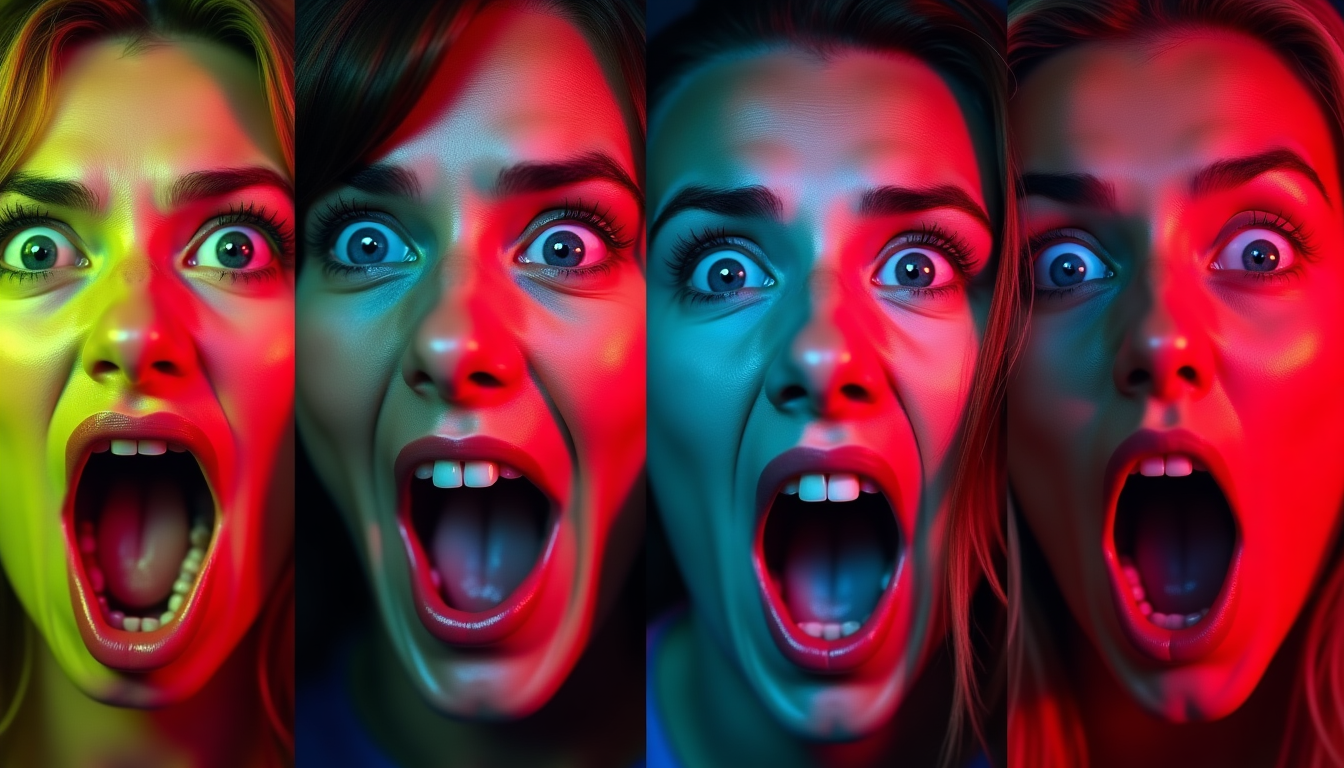
Humans are hardwired to notice faces, high-contrast colors, and "the gap." The gap is that space between what we know and what we want to know. When you use text to design ai, you can specifically request "hyper-expressive facial features" or "vibrant neon color palettes" that are scientifically proven to grab attention. Have you ever noticed how the biggest YouTubers have that slightly exaggerated look? AI can replicate that style without you needing to take 500 selfies.
Speeding Up the Workflow
I’ve found that the biggest hurdle for most creators is the "design fatigue" that sets in after finishing a video edit. By using a free AI design tool, you bypass the creative block. You aren’t starting from a blank white canvas; you’re starting with a high-quality base that just needs a few tweaks. It turns a two-hour design process into a five-minute victory lap.
Master the Prompt: Crafting the Perfect Text to Design AI Request
If you type "YouTube thumbnail for gaming" into an AI generator, you’re going to get something generic and useless. To get high-converting results, you need to think like a director. You need to provide context, lighting, and style.
Defining Your Subject
Be specific. Instead of "a man," try "a shocked man with wide eyes and hands on his face, looking at a glowing computer screen." The AI needs to know the emotion. For a tutorial video, you might prompt for "a sleek, professional workspace with a 3D floating icon of a gold coin."

Lighting and Mood Commands
This is the secret sauce. Professional designers use "rim lighting" to make subjects pop from the background. You can literally type "cinematic rim lighting, purple and orange color grade, depth of field" into your text to design ai tool. This creates that high-end, polished look that makes viewers think you have a full production team.
Avoiding the "Uncanny Valley"
We’ve all seen those AI images where the person has six fingers or teeth that look like a picket fence. To avoid this, include "negative prompts" if your tool allows, or simply keep your prompts focused on "stylized" or "illustrative" looks rather than "photorealistic." Sometimes, a slightly 3D-animated style performs better on YouTube than a photo because it feels more "clickable" and vibrant.
Elements of a High-Converting Thumbnail in the AI Era
Using text to design ai isn't just about generating a pretty picture; it's about engineering a click. There are certain visual rules that haven't changed, even if the way we create them has.
High Contrast and Color Theory
YouTube’s background is either white or dark grey. If your thumbnail is muted, it disappears. I always recommend using complementary colors—think blue and orange or purple and yellow. When you're prompting your AI, mention these colors specifically. For example, "a bright yellow background with a dark blue silhouette." This ensures your image "pops" against the YouTube UI.
The Rule of Thirds Meets AI Generation
Don't put your main subject right in the middle. It’s boring. Instead, prompt the AI to place the subject on the left or right side. This leaves "white space" (or "copy space") for your text. Remember, the bottom right corner of your thumbnail will be covered by the video timestamp. Don't put anything important there!
Creating Visual Consistency
If you want to build a brand, your thumbnails should look like they belong to the same family. You can achieve this by using the same style keywords in every prompt. Whether it’s "minimalist vector art" or "gritty cinematic photography," sticking to a theme helps your subscribers recognize your videos instantly in their feed.
Glittr vs. The Competition: Why Free AI Tools Are Winning
The market is flooded with design tools, but not all are created equal. You’ve likely heard of the big players, but for a scrappy creator, the choice often comes down to speed and cost.
Glittr vs Canva: The Efficiency Gap
While Canva is a powerhouse, it often relies on pre-made templates that thousands of other people are already using. When you use the text to design ai features in a tool like Glittr, you’re creating something 100% unique. You aren't just rearranging stickers; you're manifesting a new vision. If you're curious about how these stack up, check out our Glittr vs Canva breakdown.
Cost-Effective Design for Growing Creators
Let’s be real: paying $30 a month for multiple design subscriptions is a drag when you’re just starting out. Using a free generator allows you to experiment without the financial pressure. You can test ten different thumbnail concepts for a single video to see what works. This kind of rapid prototyping was impossible five years ago.
For those looking to expand their brand beyond YouTube, you can also explore tools like an AI Instagram Post Generator or even an AI Business Card Maker to keep your visual identity consistent across the board.
Step-by-Step Tutorial: From Idea to Upload
Let’s walk through a real-world example. Suppose you’re making a video titled "How I Made $1,000 in 24 Hours."
- The Concept: You want to show yourself looking surprised next to a pile of cash or a laptop showing a bank balance.
- The Prompt: Open your text to design ai tool and type: "A young man looking surprised, pointing at a laptop screen, stacks of hundred-dollar bills in the background, vibrant green and gold lighting, 8k resolution, cinematic style."
- The Selection: Generate 4-5 variations. Pick the one where the eyes are the clearest. Humans are drawn to eyes!
- The Polish: Take that image and add your text overlay. Keep it short—3 words max. "EASY MONEY" or "24 HOURS."
- The Test: Use a tool like ThumbsUp.tv to see how your design looks in different sizes (mobile, desktop, sidebar).
Common Pitfalls to Avoid When Using AI for Graphics
It’s easy to get carried away with the magic of AI. However, more isn't always better.
Over-complicating the Prompt
If you try to describe every single blade of grass and the brand of the watch the character is wearing, the AI will get confused. It’s like giving a chef 50 ingredients and asking for a simple soup. Stick to the "Big Three": Subject, Action, and Environment.
Ignoring Brand Consistency
I’ve seen channels where every thumbnail looks like it was made by a different person. One is a cartoon, one is a dark photo, one is a 3D render. This confuses your audience. Even when using text to design ai, try to use a consistent "style" keyword. If you like the way "cyberpunk lighting" looks, use it for your whole series.
Forgetting the Mobile User
Over 70% of YouTube views come from mobile devices. That beautiful, intricate AI-generated background might look amazing on your 27-inch monitor, but on a phone screen, it’s just a blurry mess. Always prioritize big, bold shapes and clear subjects. If you're designing for other platforms, like making an AI Instagram Post, the same rule applies: keep it readable on a small screen.
The Future of Thumbnail Design
We are moving toward a world where "A/B testing" will be automated. Imagine a text to design ai system that generates five versions of a thumbnail and automatically switches them out based on which one is getting more clicks. We aren't quite there yet, but we're close.
For now, your advantage lies in your ability to prompt better than the competition. While others are using the same tired stock photos, you are using AI to create custom, thumb-stopping art that perfectly matches your video's "vibe."
Wrapping Up: Your Click-Through Rate Revolution
The barrier to entry for high-quality graphic design has officially crumbled. You no longer need a degree in visual arts to create thumbnails that compete with the top 1% of creators. By leveraging text to design ai, you can focus on what you do best—making great videos—while the AI handles the heavy lifting of visual persuasion.
Remember:
- Focus on emotion and contrast.
- Be specific with your lighting and style prompts.
- Always check your designs on mobile-sized previews.
- Keep your branding consistent across all platforms.
Ready to see what the AI can do for your channel? Head over to our template gallery and start experimenting with your first prompt today. Your next viral video is just one great thumbnail away. Don't let a bad design stand in the way of your growth. Get out there and start creating!